How to run using cae
The plugins commands are available from within CAE as:
A toolbar, activate by
Menu items, in
Creating the rail
A basic rail is created with the command
Create rail...  , opening the following form
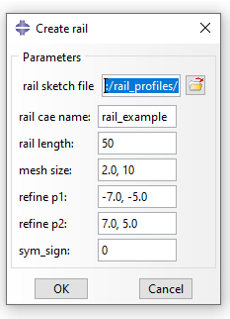
The following table describes the options
Parameter |
Description |
|---|---|
rail sketch file |
The path to the rail sketch, see Creating a profile sketch and The data folder and how to specify paths |
rail cae name |
Name of the Abaqus Model Database (.cae) file to be created |
rail length |
The extrusion length of the rail |
mesh size |
The fine and coarse mesh size, separated by a comma |
refine p1 |
The first point (x,y) defining the refine rectangle |
refine p2 |
The second point defining the refine rectangle |
sym_sign |
If symmetry about the yz-plane is used, specify the x-direction (-1 or +1), pointing away from the material. Set to 0 if symmetry is not used. |
This will create a rail part, which could look like the following
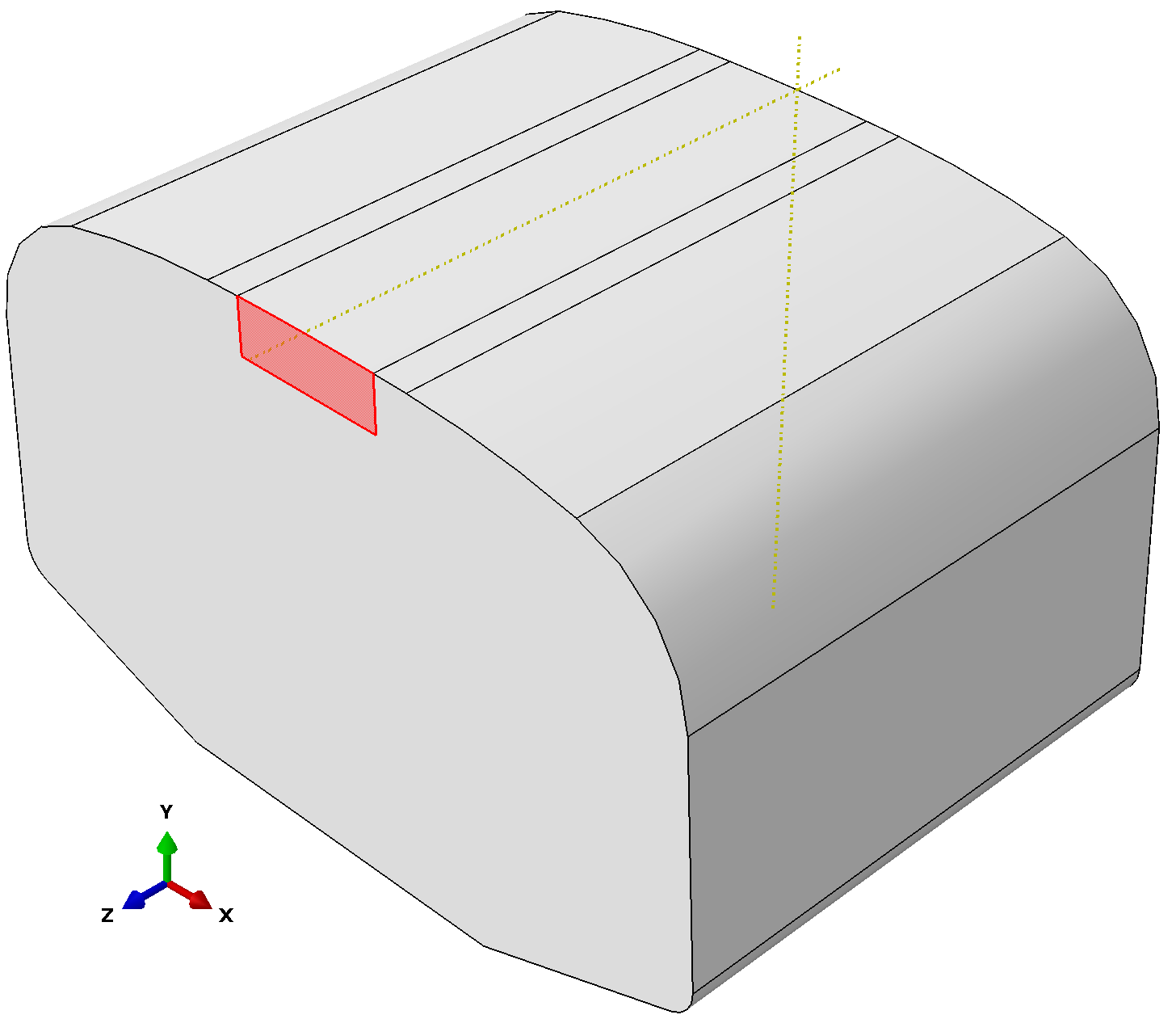
The red region marks the refine rectangle. This rectangle is used to create a cell by partitioning the rail by extrusion in the z-direction. The generated cell serves two purposes. Firstly, it controls where the fine mesh is used. Secondly, the external faces belonging to the cell, except the end faces with normal in the z-direction, make up the contact region.
The rail can now be modified to suit the needs of the simulation, e.g. changing the geometry, mesh and material definitions. The requirements on the rail are given in Modifying the basic rail. Note that the tool to make a TET mesh periodic is available as a plugin:
or on the Rollover toolbar: 
Creating a wheel
A wheel is created with the command
Create wheel...  , opening the following form
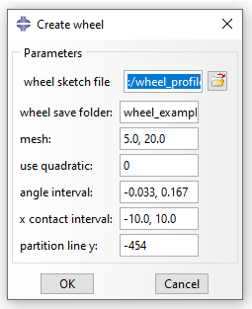
The following table describes the options
Parameter |
Description |
|---|---|
wheel sketch file |
The path to the wheel sketch, see Creating a profile sketch and The data folder and how to specify paths |
wheel save folder |
Name of the folder in which the wheel super element files should be saved. |
mesh |
The fine and coarse mesh size, separated by comma |
use quadratic |
0 for linear elements, 1 for quadratic elements |
angle interval |
The angular interval in which to retain wheel nodes. Measured in radians around x, relative the negative y-axis. |
x contact interval |
The x-interval in which to retain wheel nodes. |
partition line y |
The y-coordinate (in the sketch, typically negative) outside which the fine mesh should be applied. |
Upon pressing OK, a wheel substructure is calculated. This can take considerable time, especially for fine meshes. It is therefore recommended to test first with a bit coarser mesh. It is particularly the fine mesh size that determines the size, as this is used to determine the angular interval to mesh the wheel. For the default settings with a very coarse mesh, the full wheel mesh looks like
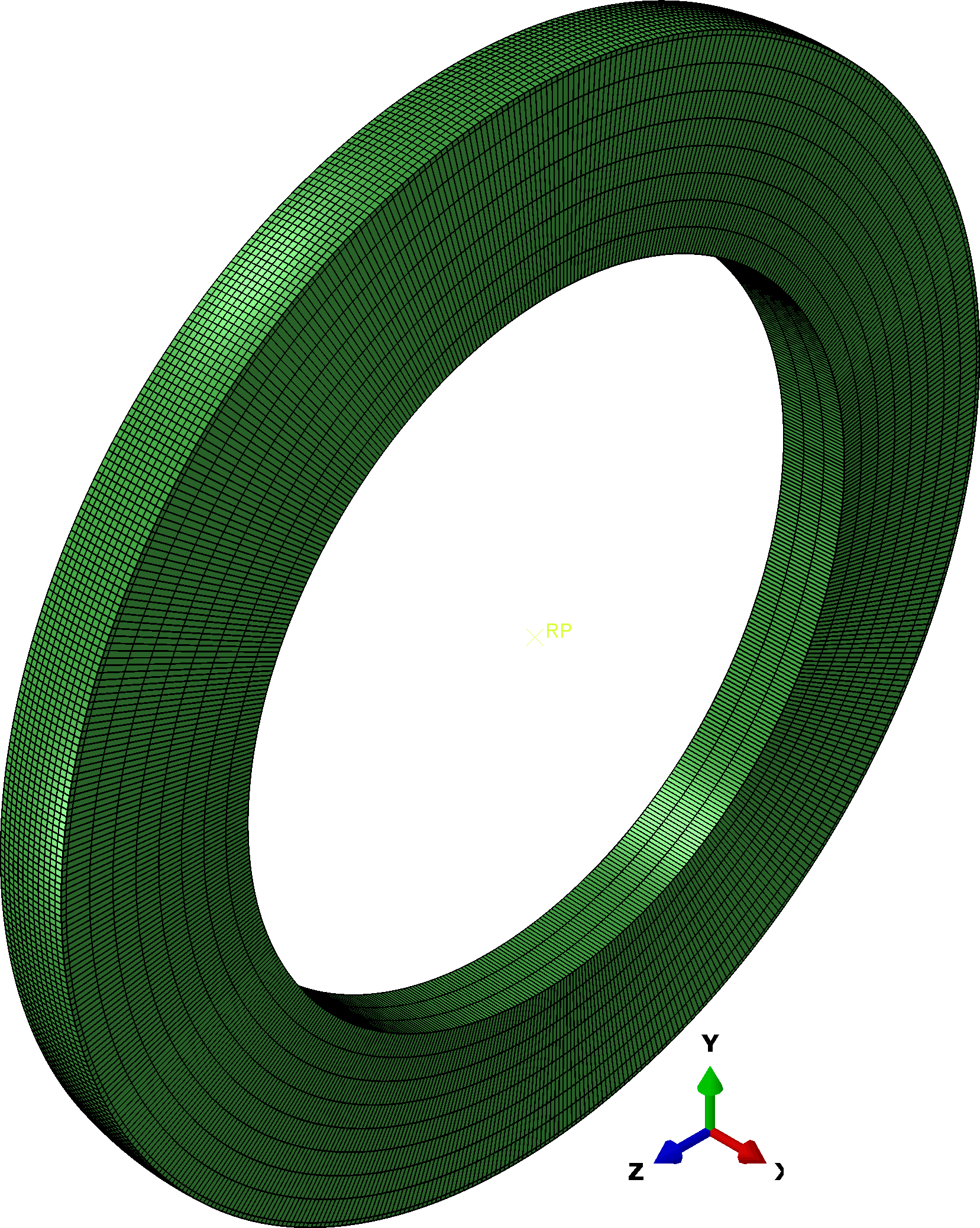
Note, however, that it is currently not supported to manually edit the wheel mesh. The motivation is that once the wheel only needs to be calculated once, and it is therefore not required to optimize the mesh.
Creating the simulation
A simulation is created with the command
Create simulation...  ,
opening the following form
,
opening the following form
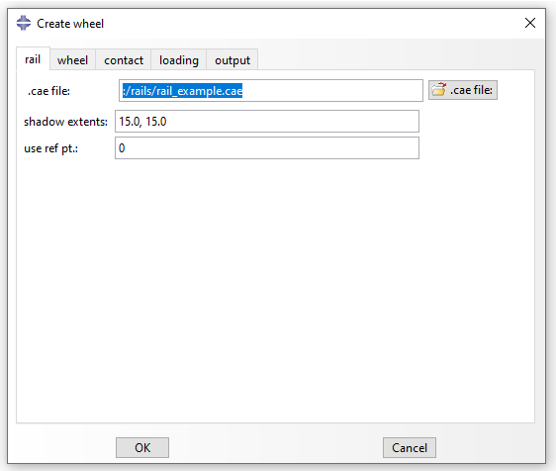
This form has multiple tabs, which are described by the following tables
Rail |
|
|---|---|
.cae file |
The path to the rail Abaqus Model Database file (.cae) |
shadow extents |
Name of the folder in which the wheel super element files should be saved. |
use ref pt. |
Wheel |
|
|---|---|
folder |
The folder containing the wheel super element files |
translation |
The vector (x,y,z) which the wheel should be translated on import. Initially, the wheel center is at (0,0,0). The rail sketch determines the (x,y) position of the rail, and it starts at z=0 and ends at z=L, where L is the rail length specified above. |
use ref pt. |
If rail extension should be used, a reference point is required. Otherwise, fewer constraints are added creating a slightly more efficient simulation. Set to 0 for no reference point, 1 otherwise. |
Contact |
|
|---|---|
friction coeff |
The friction coefficient for the contact |
contact stiff |
The constant contact stiffness used (penalty method) |
Loading |
|
|---|---|
initial depression |
How much to move the wheel control point in negative y-direction using displacement control, before switching to load control, in the first cycle |
time inbetween |
Which step time to use for the initial steps and the steps when mapping back the wheel in each cycle. |
inbetween max incr |
Maximum number of increments for the above steps. |
rolling length |
The rolling length, should match the rail length. |
rolling radius |
The rolling radius used to convert slip to rotation speed. |
max increments |
Maximum number of increments for one rolling step |
min increments |
Minimum number of increments for one rolling step |
num cycles |
Number of cycles to simulate. Please read Adding rolling cycles |
cycles spec |
The cycles for which a change in loading conditions are specified. Given as csv, matching “cycles spec” |
wheel load |
The force applied to the wheel control point in negative y-direction. Given as csv, matching “cycles spec” |
speed |
The linear speed for the wheel control point. Given as csv, matching “cycles spec” |
slip |
The wheel slip \(s\), such that \(\dot{\theta}_x = (1+s)\frac{v}{R}\) where \(\dot{\theta}_x\) is the wheel control point rotation speed around x, \(v\) is the speed and \(R\) is the “rolling radius” Given as csv, matching “cycles spec” |
rail ext |
The rail extension at the end of the rolling cycle, varying linearly to this value. Given as csv, matching “cycles spec” |
Output |
|
|---|---|
name |
The name of the field output request to be created |
set |
The rail set name to take field output data for. Additionally, the names “FULL_MODEL” (both rail and wheel) and “WHEEL_RP” (wheel reference point) are supported. |
variables |
Which variables to output, comma separated, to find the correct variables, see the string created when setting up a field output request from within CAE. |
frequency |
How often (in terms of increments) to save data |
cycle |
How often (in terms of cycles) to save data. If e.g. 25 if specified, output will occur at cycle 1, 26, 51, and so on. |
The form can be run with the default settings, except changing the paths
to the generated rail_example.cae
and folder wheel_example,
or moving them to the default path specified.
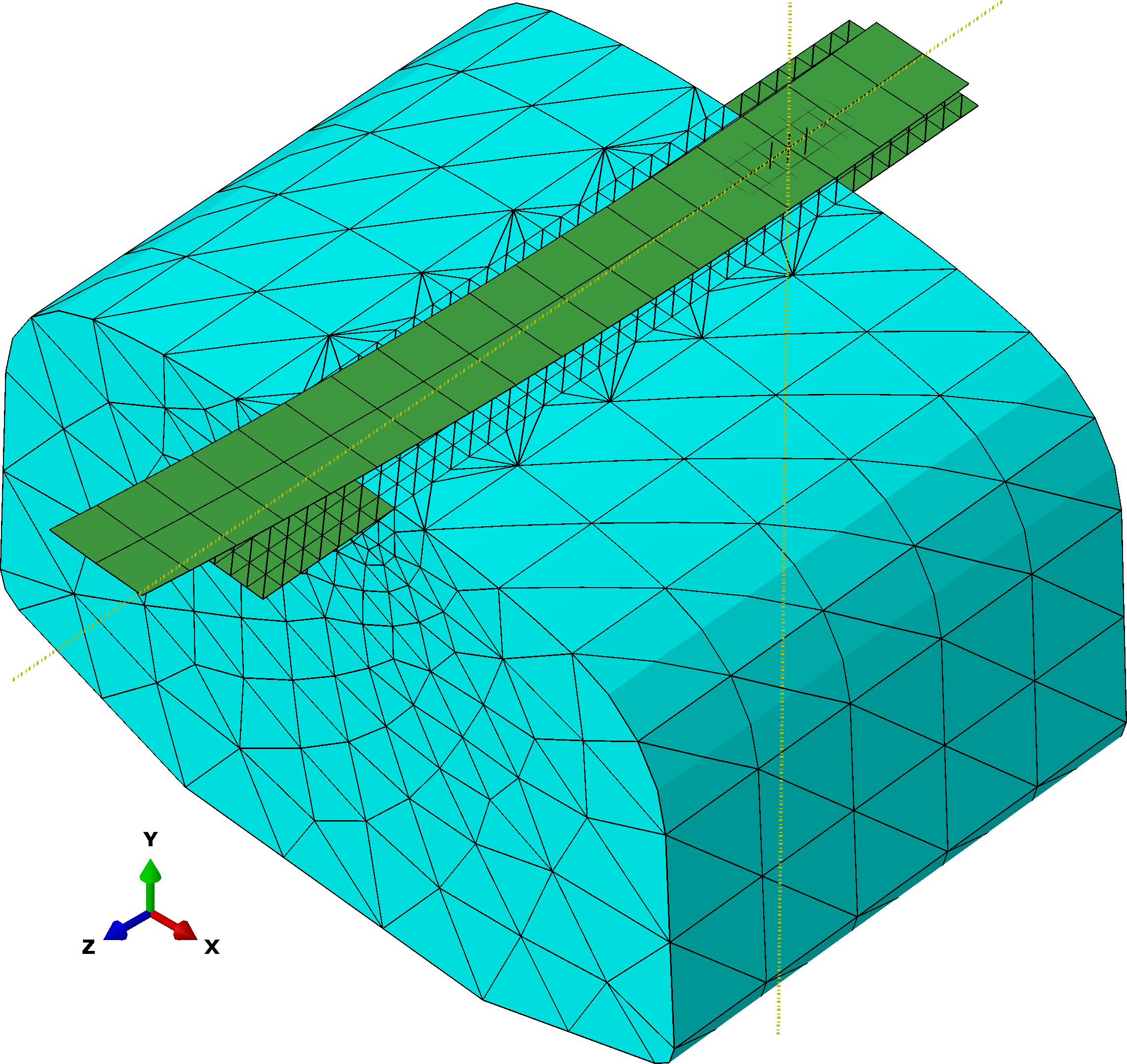
This action will create the following mesh, where the wheel
is modeled using membrane elements.
The default settings do not add any field output. In that case, Abaqus’ default field outputs will be used. Note that this choice can result in very a large output database file (.odb) if many cycles are simulated.
Running the simulation from CAE
The standard user subroutine is added to the job, allowing to run the created job directly inside CAE. If running via the command line from a different folder (e.g. a computational cluster), please see Running simulation to ensure all required files are available. Using the command line is required if the input file was modified according to Adding rolling cycles.
Result
After successfully run with the default settings, the von Mises stresses
in the rail at the middle of the rolling cycle become as shown here:
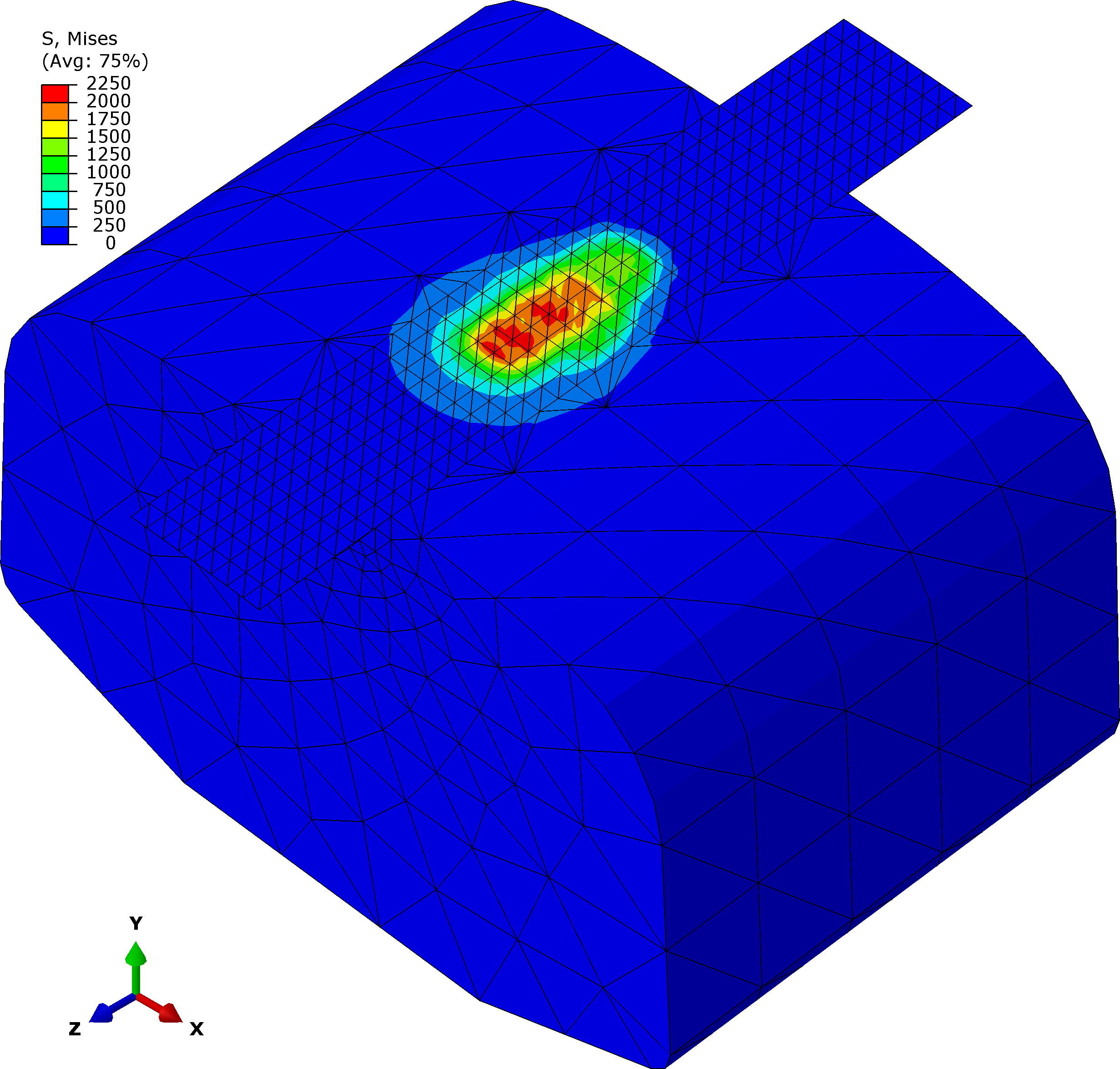
Note that the simulation time is rather long for this example, because the mesh on the rail has not been optimized. It is usually beneficial to use hexagonal elements.